Sirv for BigCommerce
 BigCommerce is a powerful platform for fast-growing stores. The one thing it cannot do out of the box is show 360 spins, and its product gallery is limited to flat images and YouTube links.
The Sirv app fixes that. It replaces your product gallery with the Sirv Media Viewer, so every product can show zoomable images, video, 360 spins and 3D models in one gallery. It also copies media between BigCommerce and Sirv, and can serve your existing BigCommerce images through the Sirv CDN.
There is nothing to code. Media is matched to products by folder name, so uploading images to the right Sirv folder is all it takes for them to appear on your storefront.
Install the app
1. Install the Sirv app from the BigCommerce App Marketplace. Open your BigCommerce control panel and go to Apps > My Apps > Sirv.
2. Create your free Sirv account (or sign in, if you already have one). You can use Sirv free or choose a paid plan.
3. Open the Sirv account tab and sign in with your Sirv email and password. If your login has two-factor authentication, enter the code when prompted. If your email belongs to more than one Sirv account, pick the account to connect:
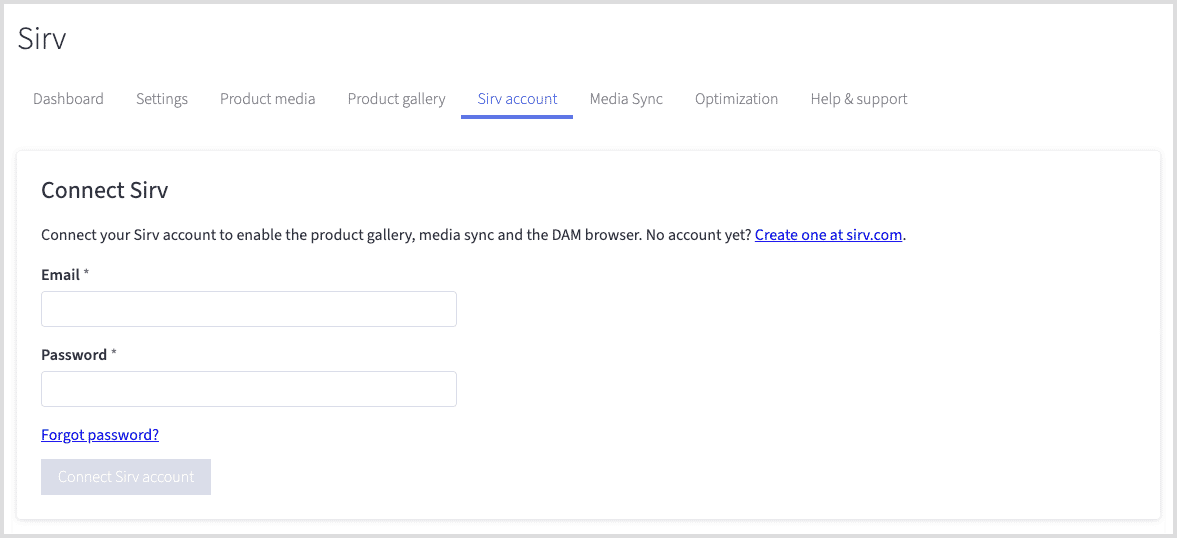
Your Sirv credentials are stored encrypted on the Sirv app server. They are never sent to your storefront or to a shopper's browser.
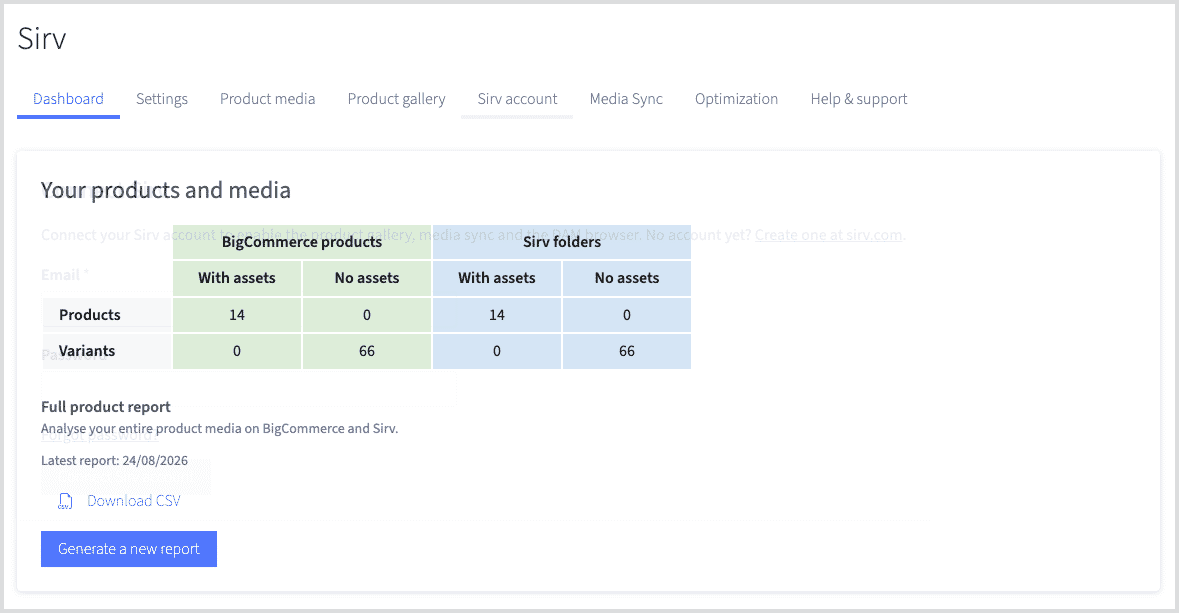
The Dashboard tab shows how many of your products and variants have media on BigCommerce and on Sirv, so you can see what is left to upload:
Folder structure
Sirv matches media to products by folder name. Each product looks for its own folder in your Sirv account, so you never have to link files to products by hand.
The default folder for a product is:
products/{sku}
So a product with the SKU EIC shows everything inside:
products/EIC/
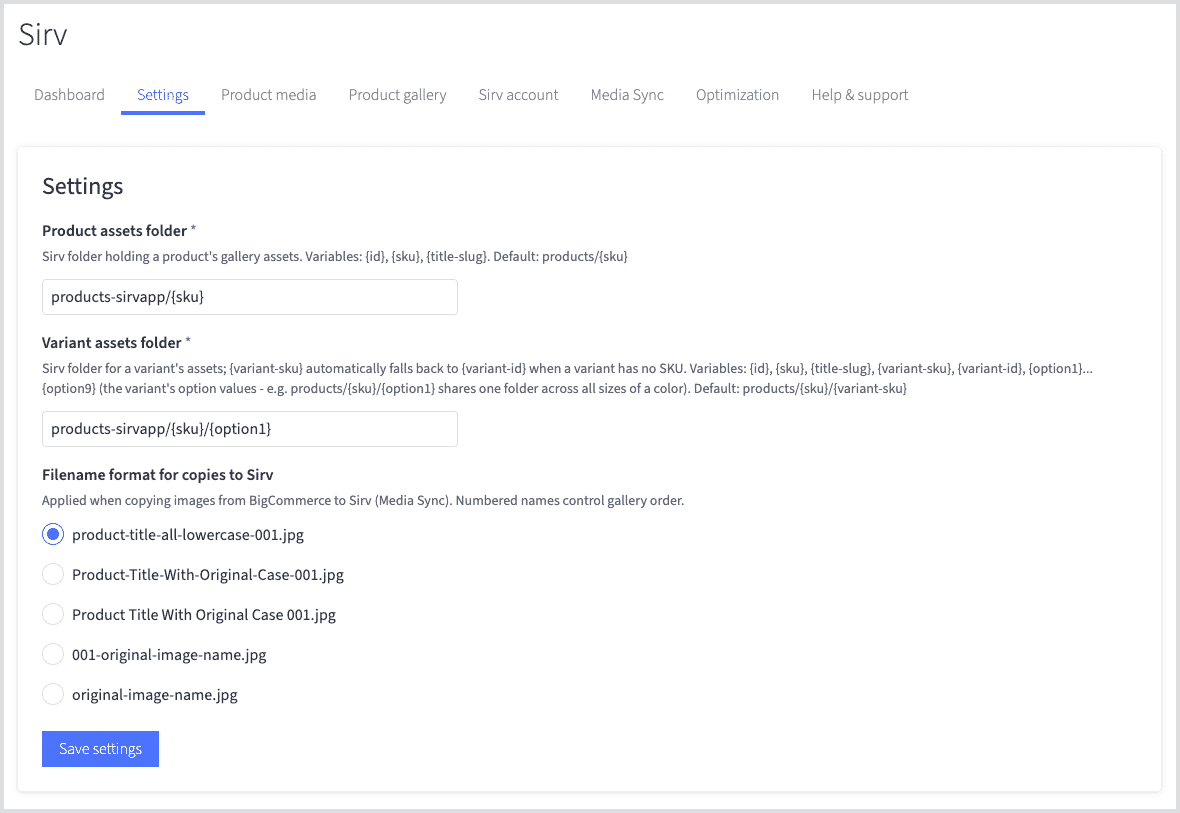
Set your own pattern in the Settings tab, in the Product assets folder field. Three variables are available:
- Product SKU: {sku}
- Product ID: {id}
- Product name: {title-slug}
The first folder, products/, is optional. We recommend a master folder to keep your home folder orderly. Sirv is a powerful CDN for any static file, so you may well use it for much more than product media in future.
Files appear in the gallery in the order they are listed in your Sirv folder, so name them in the order you want them shown, e.g. 001.jpg, 002.jpg, 003.jpg. Images, videos, 360 spins and 3D models can all sit in the same folder.
If a product has no folder on Sirv, or its folder is empty, nothing changes: your normal BigCommerce gallery is shown instead. Adding the app can never leave a product without images.
Product variants
Variant media goes in a subfolder of the product folder. When a shopper picks a variant, the gallery switches to that variant's images.
Set the pattern in the Settings tab, in the Variant assets folder field. The default is:
products/{sku}/{variant-sku}
Any of these variables can be used:
- Variant SKU: {variant-sku}
- Variant ID: {variant-id}
- Option values: {option1} to {option9}
Option variables are the most useful when several variants share the same images. A red T-shirt looks the same in every size, so one folder per colour is enough:
products/{sku}/{option1}
With that pattern, a product with the SKU EIC and the colours Red, Dark blue and Pale yellow would use:
products/EIC/Red/
products/EIC/Dark blue/
products/EIC/Pale yellow/
Name the folders to match your BigCommerce option values. Capital letters and spaces are fine - Dark blue and dark-blue are both matched.
Option folders also update the gallery sooner. If the folder only depends on colour, the gallery switches the moment a shopper picks a colour, without waiting for them to choose a size as well.
Choose what a selected variant shows in the Product gallery tab, in the Assets to show for selected variant field:
- All product assets - the product's own assets plus the selected variant's, with the first variant image brought into view.
- Variant specific assets - only the selected variant's assets.
- Variant specific + common assets - the selected variant's assets and the files sitting directly in the product folder.
Another variant's images are never shown once a variant is selected. If the selected variant has no folder yet, the product's own assets are shown instead.
Turn on the gallery
Open the Product gallery tab and set Enable Sirv product gallery to Automatic. The app installs the storefront script for you and every product page starts using the Sirv Media Viewer:
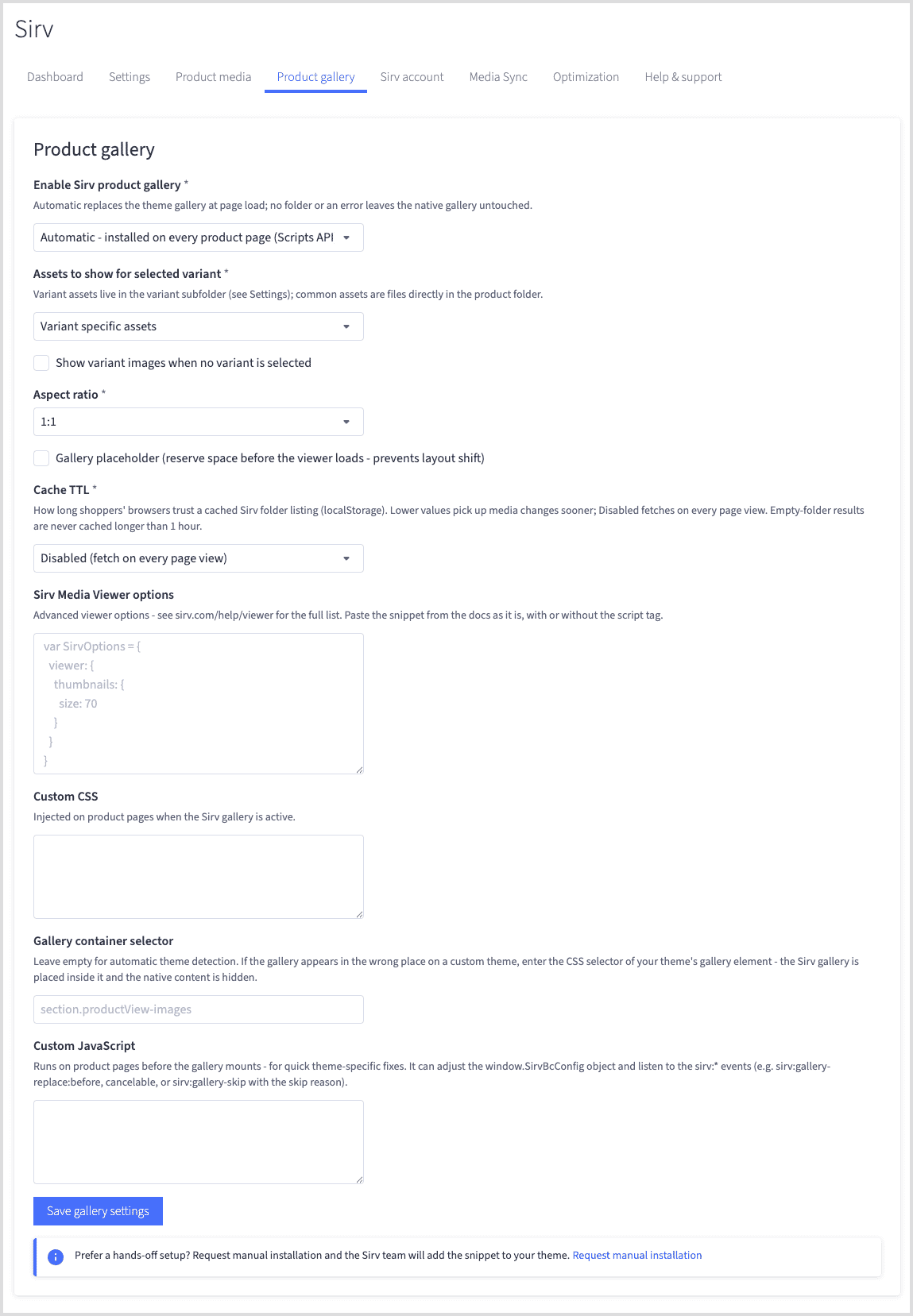
Three modes are available:
- Automatic - installed on every product page. Recommended.
- Manual - the app gives you a snippet to paste into your theme, for full control over where the viewer appears.
- Disabled - your native BigCommerce gallery only.
Two more settings are worth setting straight away:
Aspect ratio reserves the right amount of space for the viewer before your images load, which stops the page jumping about. Leave it on Auto to size the viewer from your first image, or pick a fixed ratio such as 1:1 if all of your product photos are square.
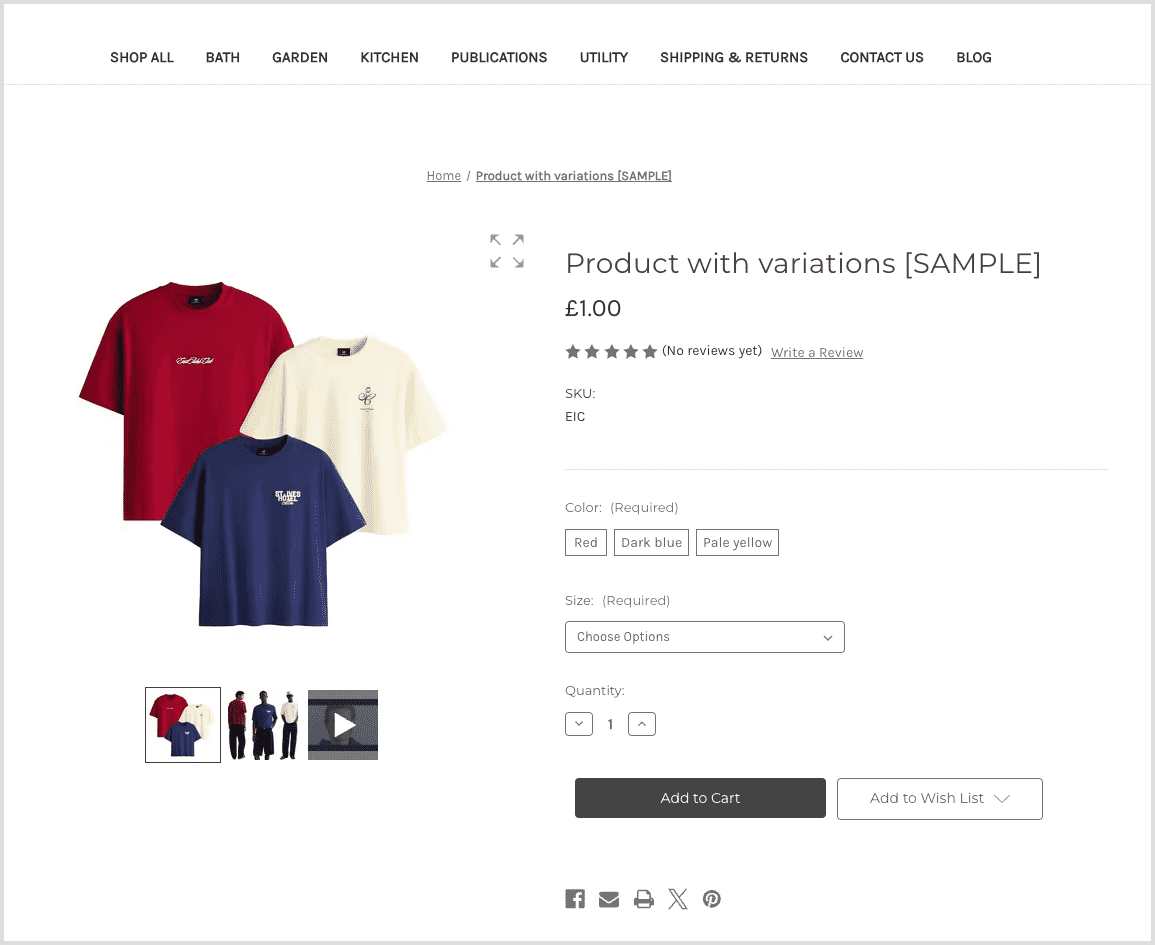
Here is the result on a product page - images, video and a 360 spin in one gallery:
Supported themes
The gallery works with Stencil themes, including Cornerstone and the themes built on it. The app finds your theme's gallery automatically and mounts the viewer in its place, so your page layout is unchanged.
If your theme uses an unusual gallery markup and the viewer does not appear, enter a CSS selector for your gallery container in the Gallery container selector field in the Product gallery tab. If you are not sure what to use, contact the Sirv support team and we will find it for you.
Customize the viewer
Over 100 options are available to change the viewer's thumbnails, zoom, spin speed, hints, autoplay and more.
1. Go to the Sirv Media Viewer page and choose your options.
2. Copy the generated code and paste it into the Sirv Media Viewer options field in the Product gallery tab. You can paste the snippet exactly as the documentation shows it, with or without the script tag:
<script>
var SirvOptions = {
  viewer: {
    thumbnails: {
      size: 70
    }
  }
}
</script>
3. Save your changes and reload a product page.
To restyle the gallery, add your own rules in the Custom CSS field. It is injected on product pages only when the Sirv gallery is active.
Manage product media
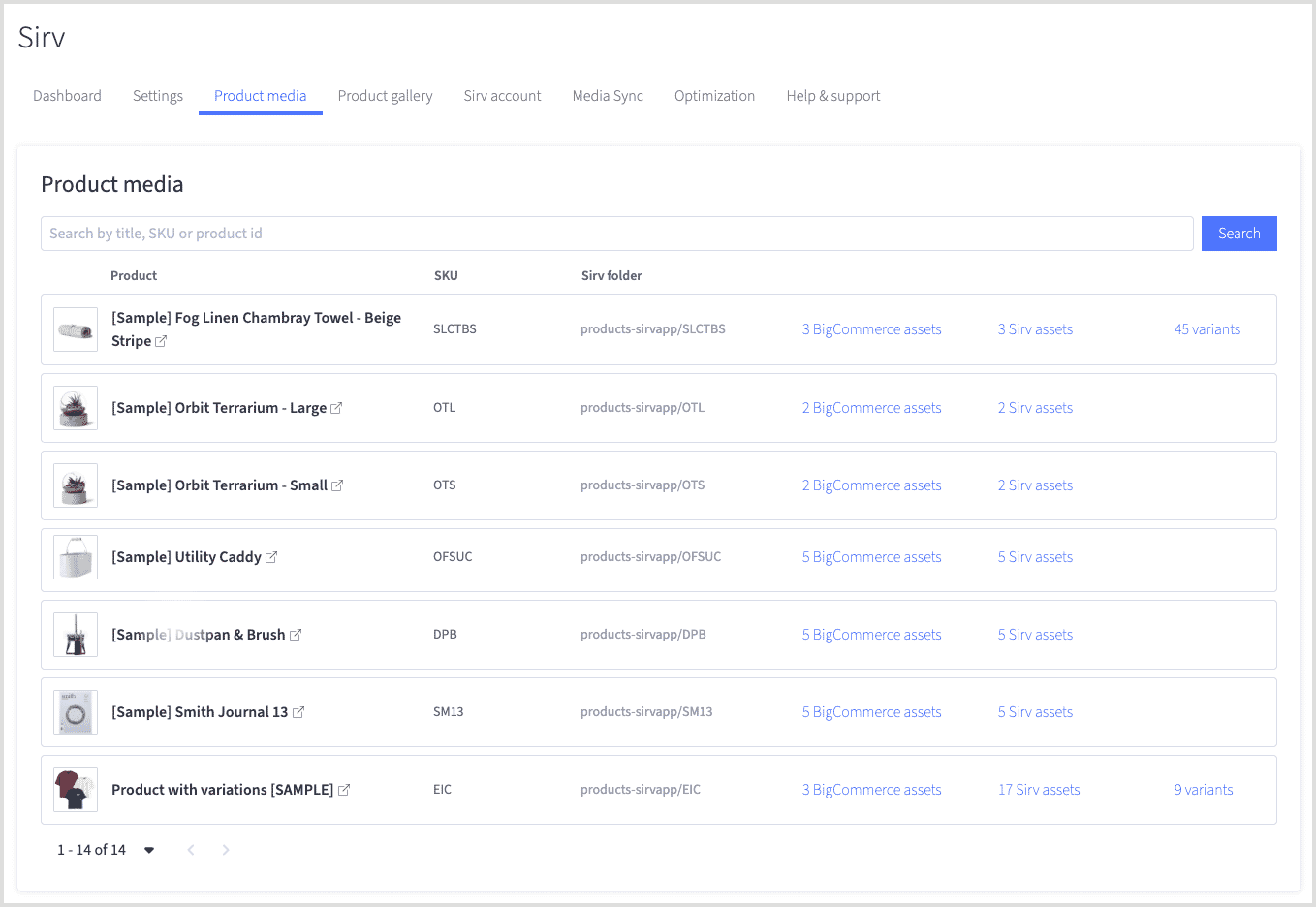
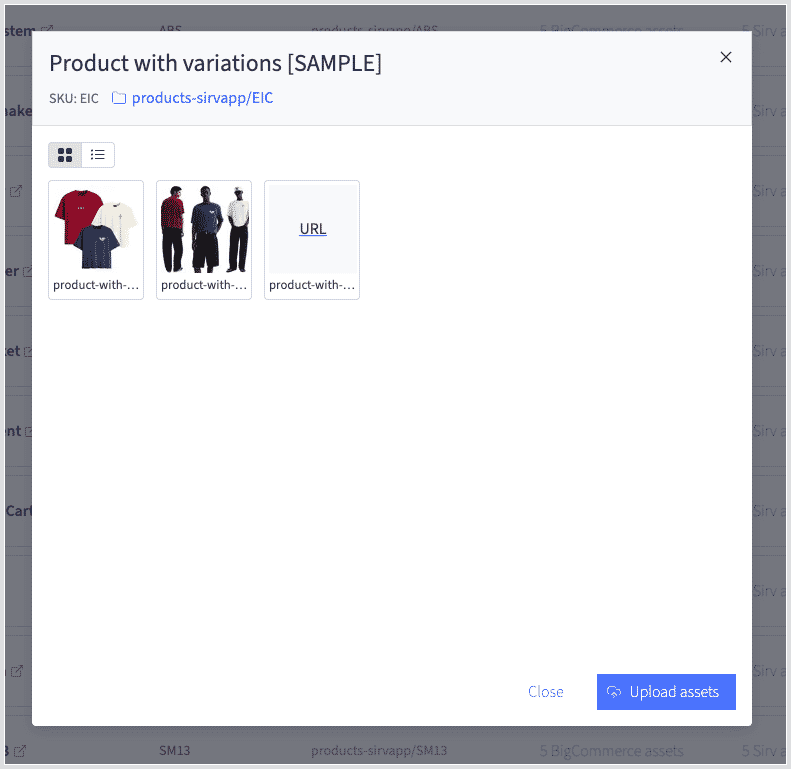
The Product media tab lists your catalogue with the images held on BigCommerce and the assets found on Sirv, side by side. Open a product to see its Sirv folder, upload new files, or delete the ones you no longer need - without leaving your BigCommerce control panel:
Products with variants can be expanded to show each variant, its SKU and the Sirv folder it resolves to. This is the quickest way to check that your folder names match before you upload a whole catalogue.
Copy media in bulk
The Media Sync tab copies media between the two systems in bulk, in either direction. Choose whether to run it across your whole catalogue or a smaller scope, then start the job:
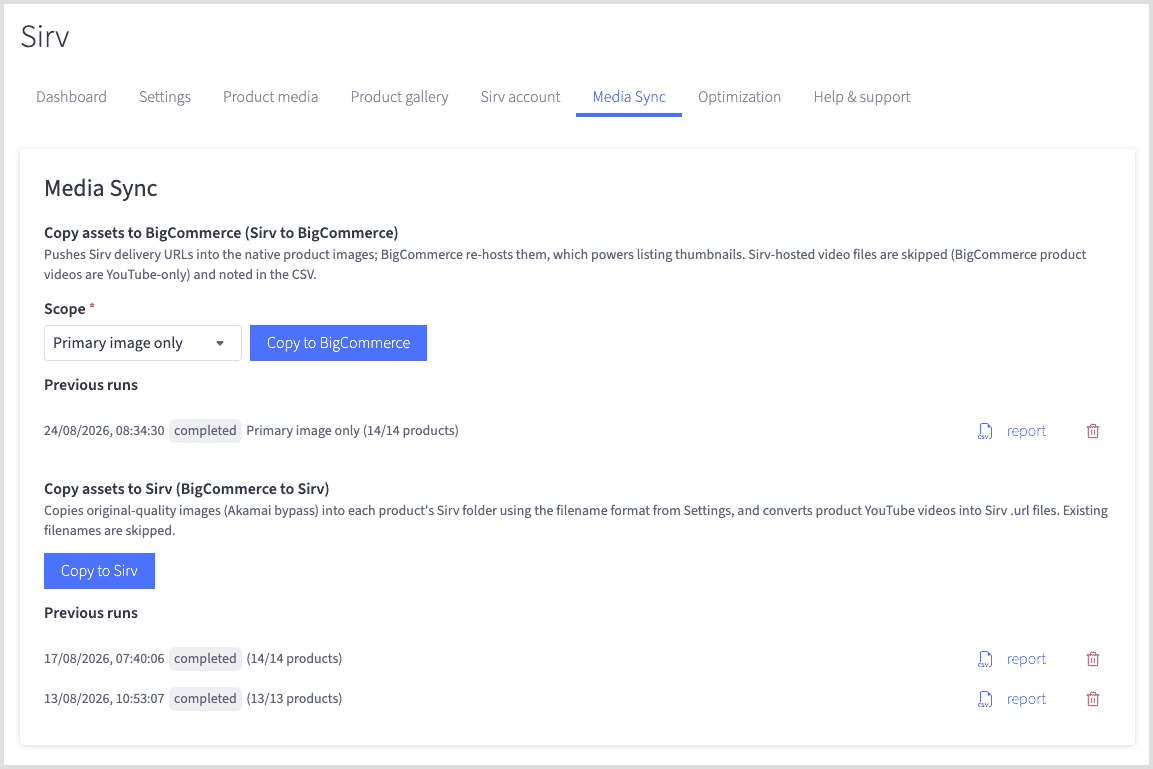
Copy assets to Sirv takes your existing BigCommerce product images at original quality and files them into each product's Sirv folder. This is the fastest way to get started if your images are already in BigCommerce. Choose how the copied files are named in the Settings tab, for example product-title-all-lowercase-001.jpg or 001-original-image-name.jpg.
Copy assets to BigCommerce pushes your Sirv images back into the native product images, which is what BigCommerce uses for category and search thumbnails. Video files are skipped, because BigCommerce product videos can only be YouTube links.
Every job runs in the background and can be cancelled. When it finishes, download the CSV to see exactly what was copied, skipped or failed for each product.
Optimize existing images
You can also speed up the images you already have in BigCommerce, without moving them. Open the Optimization tab and turn on Deliver BigCommerce images from Sirv:
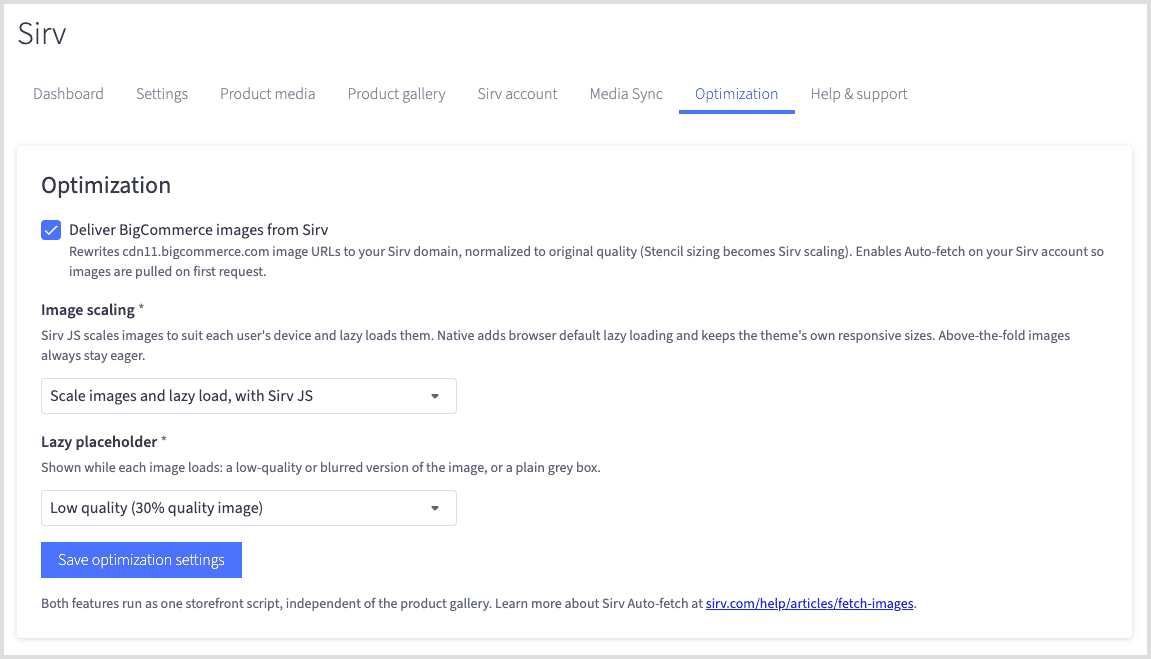
Sirv fetches each image from your BigCommerce CDN the first time it is requested, then serves it from the Sirv CDN in the best format for each browser, such as WebP or AVIF. Nothing in your catalogue changes and you can switch it off at any time.
Image scaling controls how those images load:
- Scale images and lazy load, with Sirv JS - each image is loaded at the size it is displayed, on retina screens too, and only when it is needed.
- Native lazy loading - the browser's own lazy loading, leaving your theme's responsive images alone.
- Disabled - no lazy loading.
With Sirv JS scaling you can also choose a Lazy placeholder to show while each image loads: a low quality version, a blurred version, or a plain grey box that costs no extra request.
Clear the gallery cache
To keep product pages fast, each shopper's browser remembers for a while which files are in a product's Sirv folder. New uploads can therefore take a few minutes to appear on the storefront.
If you are still setting up and want to see changes immediately, lower Cache folder listings in the Product gallery tab. The default is 3 hours; choose Disabled while you work, then raise it again when your media is in place.
Get expert help
Our customer support team is always happy to help configure Sirv on your BigCommerce store. Please contact the Sirv support team.